Intention(Description)
Flow
Capture your programs.
At this point you must have at least some idea of the state of your system.
What landings have charge for you? What utilities do rhose landings have?
What deficiency stories?
Capture your VIPs.
VIP is a person in your life that you have charge with. Start by adding your parents, partners, children, etc.
To add a VIP select VIP in the Type dropdown when creating a program.
Make connections.
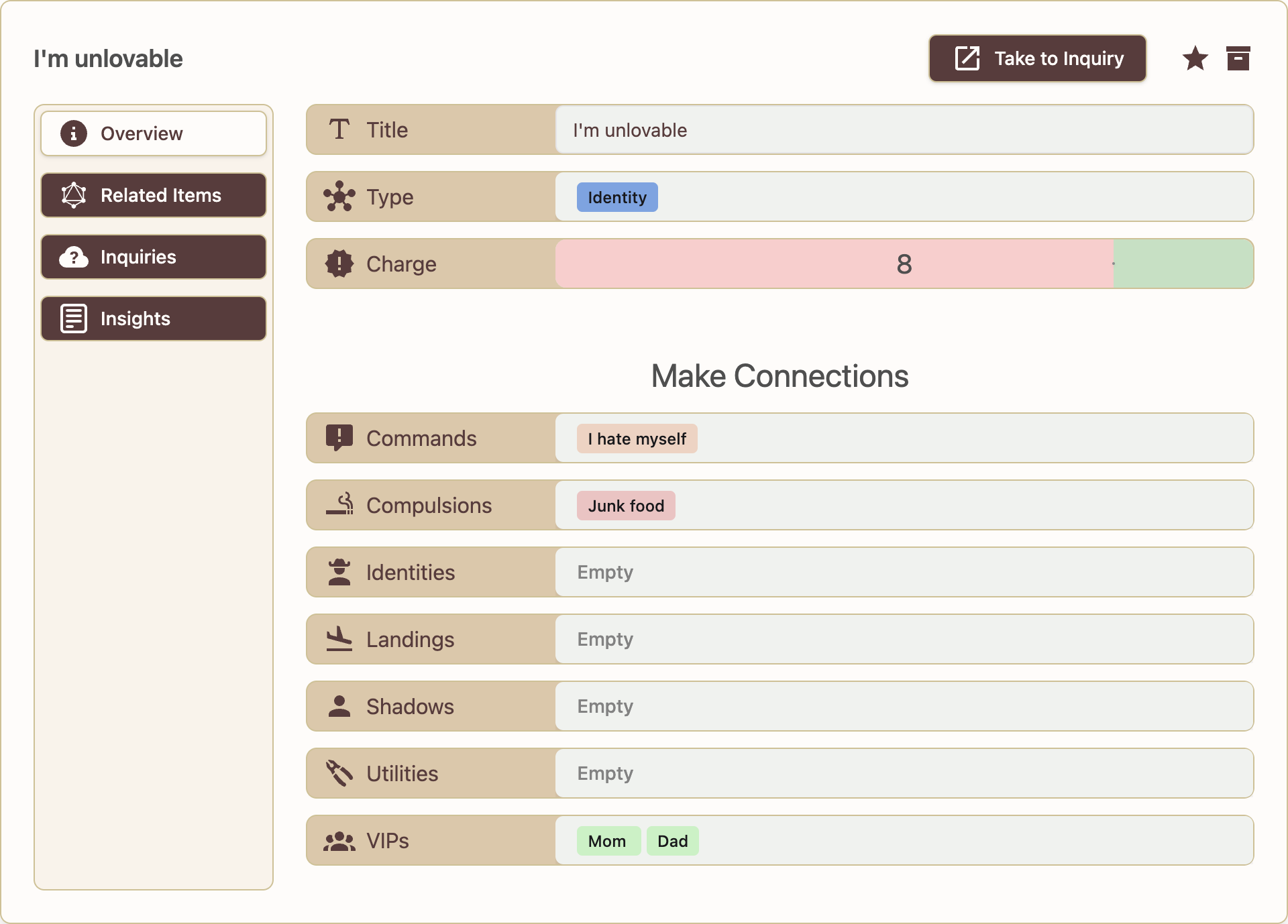
Once your net has some programs and some people in it, it's time to make connections. Here you'll just have to see what makes sense for you. What landings have what utilities. What deficiency stories get triggered in your relationship with mom. What compulsions get activated once you encounter this shadow.
You get the idea.
Capture insights.
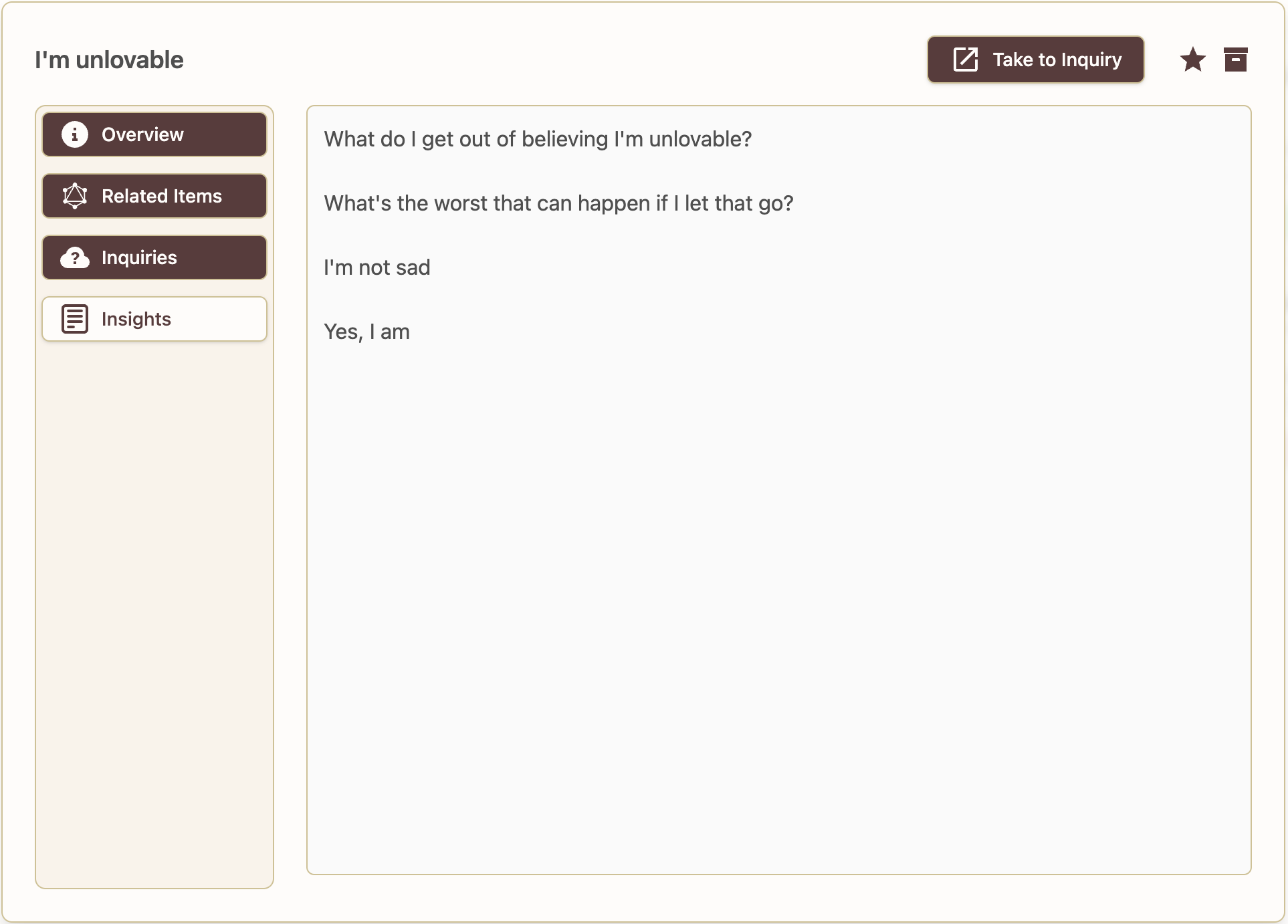
Feel free to journal, capture insights or inquiries that yield high charge. So that next time you revisit a program, there will be more material to rev up.
Take to Inquiry.
At any point, while bypassing working with your net you can take a program to inquiry by pressing the button.
This will redirect you to the Process scree
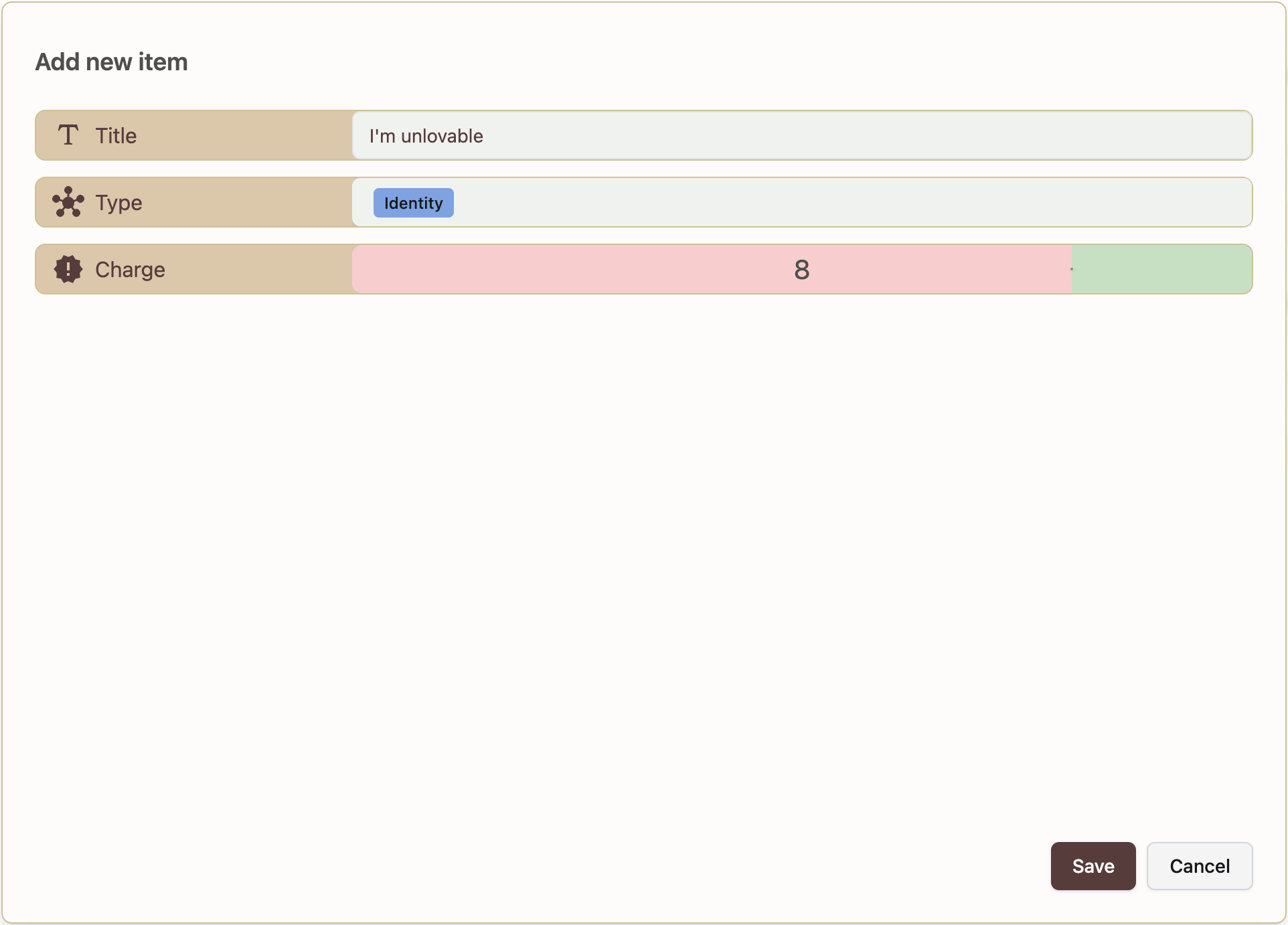
Add New
Describe how users can add new items to their net. Include instructions on the input fields, any required information, and tips for efficient item creation.
Filters
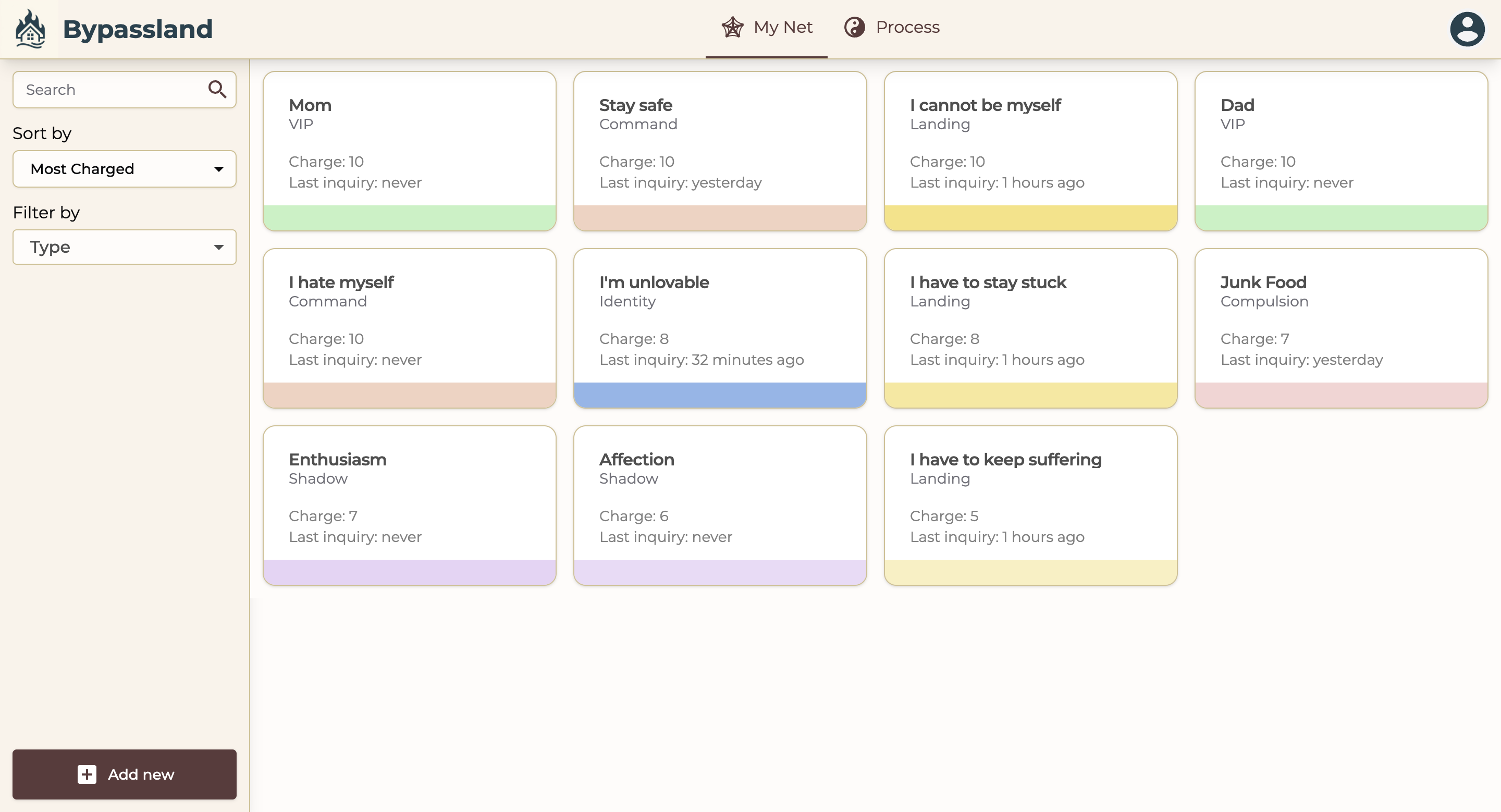
Search
Explain the search functionality, how users can use it to find specific items in their net, and any advanced search options available.
Sort
Describe the sorting options, including how users can sort items based on different criteria (e.g., date, relevance, type).
By Type
Detail the filtering options by type, allowing users to view only certain types of items. Explain the types available and how to apply these filters.
List of Items
Provide an overview of how the items are displayed in a list. Describe any features of the list view, such as pagination, item details, and quick actions.
Card
Explain the card view for items. Describe the layout of the card, the information displayed, and any interactive elements like buttons or links.
Dialog
Description of the dialog that appears when an item is clicked. Explain the layout of the dialog, the information displayed, and any actions that can be taken from the dialog.
Overview Tab
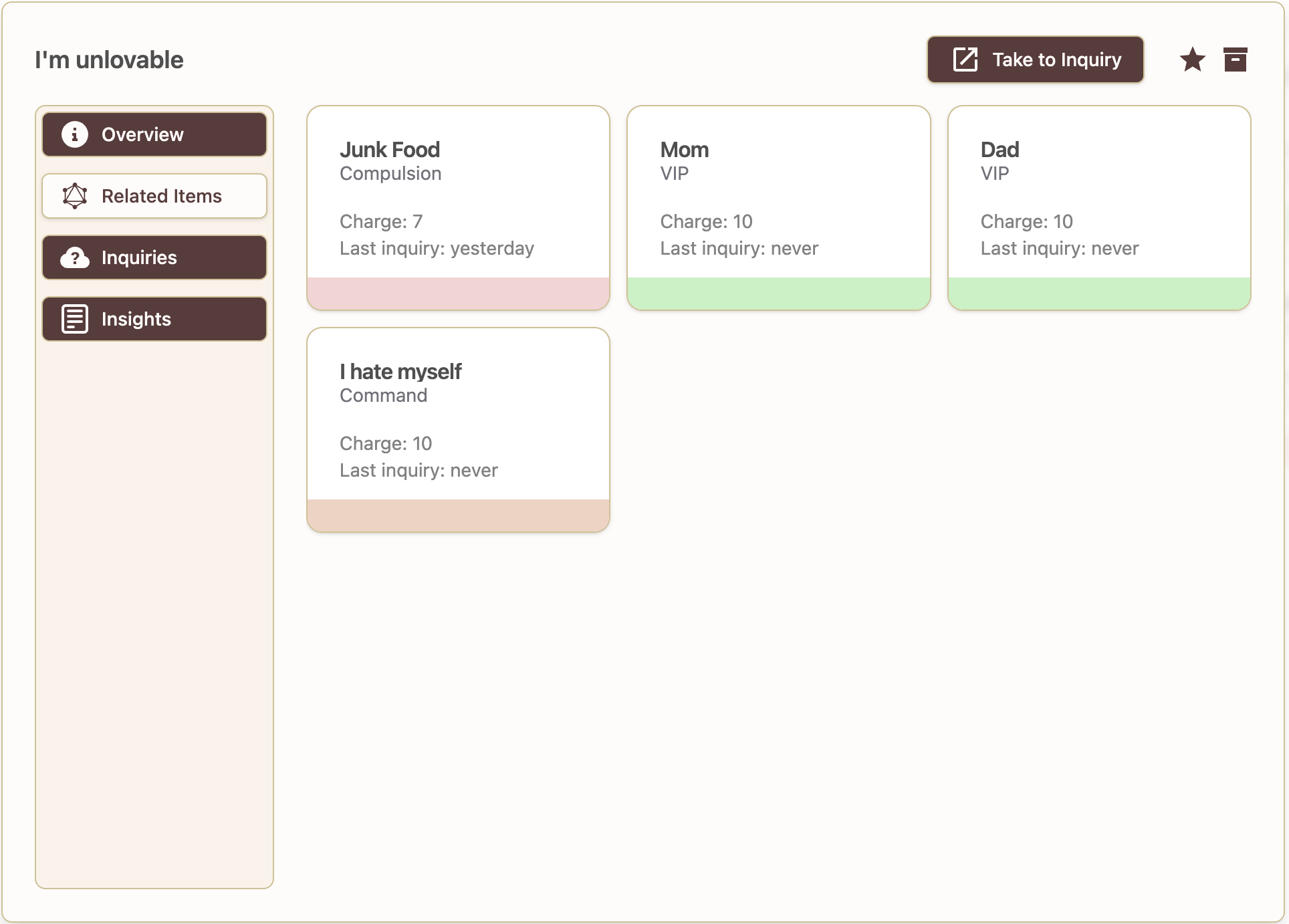
Discuss the overview tab in the dialog. Detail the information presented here and how it provides a summary of the item.
Related Items Tab
Explain the related items tab, where users can see items that are linked or associated with the current item. Describe how relationships are shown and managed.
Insights Tab
Provide details on the insights tab, highlighting any analytical data, statistics, or insights related to the item. Explain how users can interpret and use this information.